
Introduction
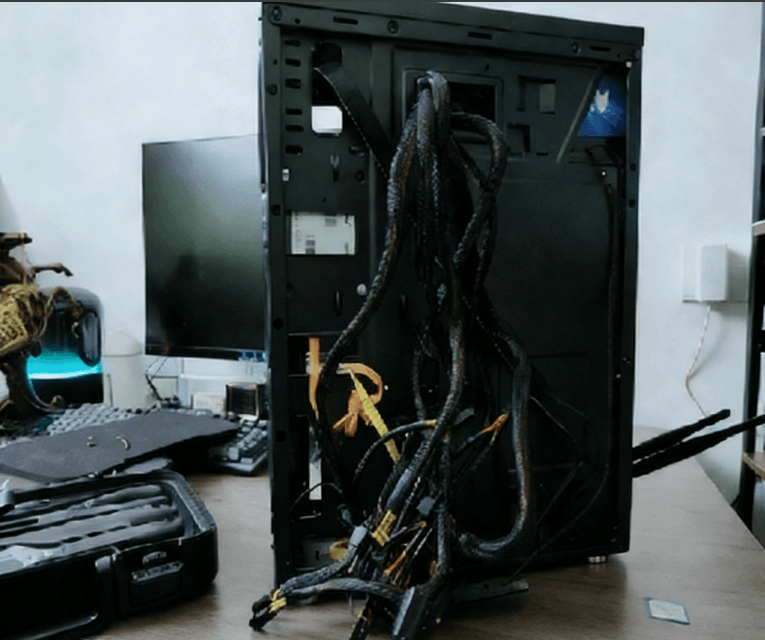
Even if you pride yourself on having a tidy desktop, your PC interior may tell a different story. Open the case, and you might see cables tangled like a spider web—hardly ideal. Achieving cleanliness starts from the inside out. Using hook & loop cable ties, you can easily organize cables and improve airflow, cooling, and overall aesthetics.

1. Power Supply
Use a modular power supply if possible: Only connect the cables you need, reducing excess cables from the start.
Cable length: Modular power supply cables are usually long enough to route along the case edges.
Non-modular power supply: Bundle excess cables together to prevent them from blocking airflow.
Tools: Hook & loop ties are recommended for reusable bundling; rubber bands can also be used temporarily.
2. CPU Power
CPU auxiliary power cables can cross over the motherboard if the PSU is bottom-mounted, creating clutter.
Solution: Use a 4-pin extension cable if needed, and route it through cable management holes along the motherboard tray.
This keeps cables neat and prevents interference with other components.
3. Fans
Many PC cases have multiple fans, each with power cables. Even thin cables can create clutter when numerous.
Cable management tip: Most fan frames have grooves at the four corners. Place cables in these grooves and secure them with hook & loop ties around screws.
This prevents cables from obstructing fan rotation and reduces risk of damage.
4. Hard Drives and Optical Drives
SATA data and power cables are smaller than older IDE cables but can still obstruct airflow when multiple drives are installed.
Tip: Bundle several SATA cables together using hook & loop ties and secure them along the case frame edges.
5. Front Panel Cables
Front panel connectors (power switch, reset switch, LEDs, speaker, USB/audio extension) often clutter the case interior.
Organize: Bundle excess cables with hook & loop ties or rubber bands. For audio cables with multiple connectors, only the needed connector should be used; extra connectors can be tied along the bundle.
General Cable Management Tips
After installing or removing components, always reorganize cables.
Use extension cables for short runs; route longer cables along the case edges.
Avoid crossing cables over the motherboard or airflow paths.
Avoid tight, permanent cable ties; hook & loop ties allow easy adjustments.
Proper use of hook & loop cable ties not only keeps your PC interior neat but also improves airflow and reduces noise.